
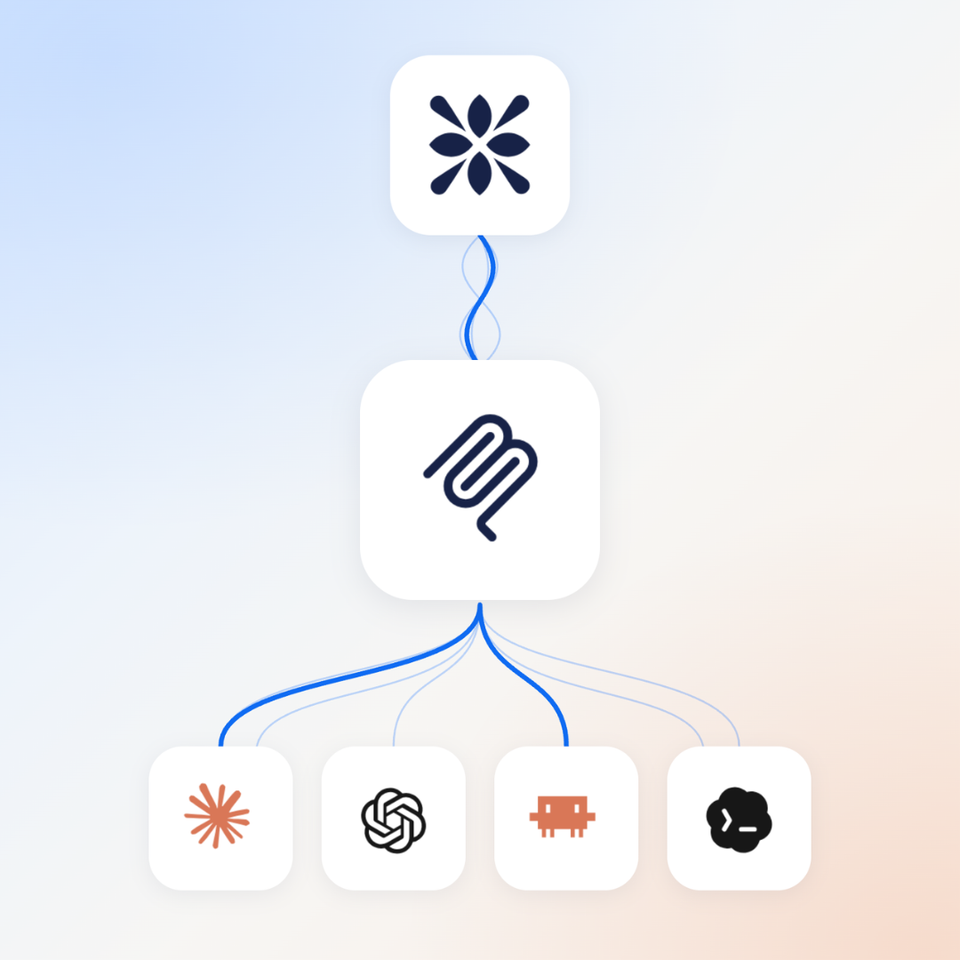
Vasco is now listed in the Claude connector directory, so connecting Vasco to Claude takes one click and a sign-in instead of a manual setup form.
The listing is live for every Vasco organization today.
How do you connect Vasco to Claude?
- Open the Claude connector directory, or open Settings and then Connectors inside Claude.
- Search for Vasco and click Connect.
- Sign in with your Vasco account.
Anyone who connected Vasco before the listing existed is already set up and has nothing to redo. Claude Code recognizes the same connection, so connecting once covers both.
What does connecting Vasco to Claude do?
Connecting Vasco gives Claude the business context that raw CRM records leave out. A CRM stores values without storing what they mean, so Claude cannot work out on its own that a customer in your billing system and a company in your CRM are the same account.
Once Vasco is connected, Claude can read four things it could not read before:
- Resolved identities. One account is one account across every system you have connected.
- Your definitions. A metric means the same thing every time someone asks for it.
- Plan beside actuals. Every number arrives with its target and its variance.
- Tagged outcomes. Today's deal is measured against the deals that already closed.
Every number Claude returns then carries a source and a definition your own team wrote, and you can follow it back to the signal that moved it.
Does connecting Claude give anyone new access to Vasco data?
No. Signing in tells Vasco who you are and nothing further. Your organizations and your role still decide what you can reach, and Vasco checks that on every request. Someone with view-only permissions in Vasco keeps view-only permissions when working through Claude.
Can Claude change things inside Vasco?
Yes, with your approval. Claude can update parts of your revenue model through Vasco, including ideal customer profiles, go-to-market motions, and team structure. Claude asks for your approval the first time it uses one of these, so grant it when you genuinely want something changed.
Connect Vasco
Search for Vasco in the Claude connector directory and click Connect. Setup instructions and the full list of what Claude can do with Vasco are in the Vasco MCP help article.


